
Android TVFor you
Android 10 or newer, ARM, remote control
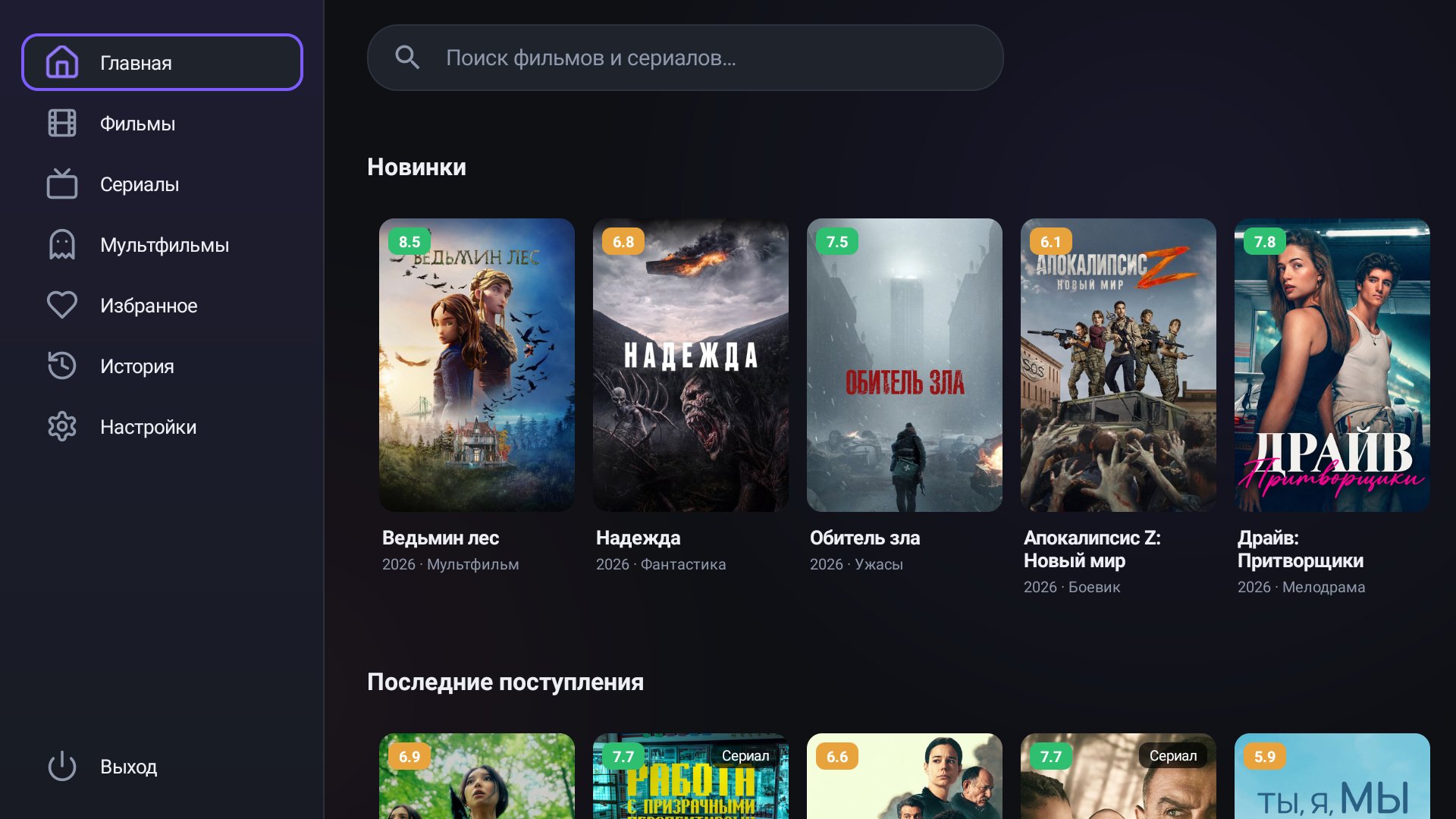
A free app for movies and TV shows that works with a regular remote: arrows, OK and Back. Installing takes a few minutes.
Version 1.6.0
Always the latest version: the links update by themselves when a release comes out.
Android 10 or newer, ARM, remote control
Download CineTV-<version>-arm64-v8a.apk: it fits almost everyone. For older 32-bit devices (for example, some Xiaomi Mi TV models) there is the armeabi-v7a build.
The easiest way is a USB stick: copy the APK to it, plug it into the TV and open the file in a file manager. You can also download the file on the TV itself or install from a computer over ADB.
If the TV says installing from unknown sources is blocked, tap Settings and enable the permission for your file manager, then confirm the installation.
Find the CineTV icon in the app list. On the first playback the app may show "Connecting to the site…" for a few seconds: that is the source check, there is nothing to press.
Start with arm64-v8a, it fits almost everyone. If the installer says the app does not suit this device, take armeabi-v7a.
Check that installing from unknown sources is allowed for your file manager. If that does not help, try the other file (arm64-v8a or armeabi-v7a).
Update Android System WebView in Google Play on the TV.
The site may be blocked on your network. In Settings → Providers turn it off or set another mirror. At least one source must stay enabled.
The app offers a new version when it starts. History, favorites and settings are kept. You can also update manually: Settings → App update.
Run the installer or unpack the portable version. You need Windows 10 or newer, 64-bit. .NET and the video player are already inside the app, so there is nothing else to install.
Learn more →Open the .dmg for your Mac: Apple Silicon (M1 and newer) or Intel. macOS 12 Monterey or newer is required. The builds are not signed yet, so on first launch you confirm opening them as the guide describes.
Learn more →